Help and documentation
Everything PageCore does, explained step by step in plain words. No coding needed.
Getting started
What PageCore does
PageCore is a free WordPress plugin that helps you build a complete, professional website without starting from a blank page. It works together with the free PageCore FSE block theme.
It gives you three main tools, all inside your normal WordPress dashboard:
- Starter Sites: import a complete ready-made website (pages, images, menus, header, footer, contact form, colours and fonts) in one go, through a short guided wizard.
- Design Library: a PageCore Library button in the page editor that adds ready-made sections (called patterns) or whole pages to the page you are working on.
- Style Library: give the whole site a new set of colours, fonts and spacing in one click, without touching your content.
It also adds two small extras to the block editor, Tablet Navigation and Absolute Position, described under Settings.
Everything PageCore adds is made from normal WordPress blocks. Once a page is on your site, you edit it like any other page, and it stays in place even if you later switch PageCore off, although sections that use PageCore's colour schemes, Tablet Navigation or Absolute Position lose that styling.
Requirements
PageCore runs on most ordinary WordPress hosting. Before the first import it checks your site for you and tells you plainly if anything is missing, so you do not need to check all of this by hand.
| What | Needed |
|---|---|
| WordPress | Version 7.0 or newer. |
| PHP | Version 7.4 or newer. Your host can tell you which version you have, and WordPress shows it under ToolsSite HealthInfo. |
| Theme | The free PageCore FSE theme. PageCore installs and activates it for you from WordPress.org. See the PageCore FSE theme. |
| Your account | An Administrator account. Editors and Authors cannot use PageCore's screens or the Design Library. |
| Images | The GD or Imagick image library on the server (almost every host has one), so WordPress can make the smaller image sizes. |
| Space and uploads | A writable uploads folder and enough free disk space for the demo's images. The import tells you how much it needs. |
| Internet access | Your website must be able to reach pagecore.net and demos.pagecore.net over https (normal on any live host). |
| Browser | Any current browser. Keep the tab open while an import runs. |
Lower PHP memory or short time limits do not stop an import. PageCore simply works in smaller pieces, which takes a little longer.
Install PageCore
- In your WordPress dashboard, go to PluginsAdd New Plugin.
- Search for PageCore. When you see it, click Install Now, then Activate.
- A new PageCore item appears in the left-hand admin menu. Click it to open the Settings screen.
If you have the plugin as a .zip file instead, go to PluginsAdd New Plugin, click Upload Plugin, choose the file, then click Install Now and Activate.
The PageCore menu holds:
- Settings: switch each feature on or off.
- Starter Sites: import a complete website.
- Style Library: change the whole site's look. It appears only while the PageCore FSE theme is active.
The Design Library has no menu item. It lives inside the page editor, as a button.
The PageCore FSE theme
The starter sites, patterns and styles are designed for the free PageCore FSE block theme. You do not need to install it yourself:
- If it is missing or not active, a yellow notice at the top of PageCoreSettings offers a button: Install and activate when the theme is not on your site, or Activate when it is. The page reloads when it is done.
- Importing a starter site also installs and activates it, after telling you on the first step of the wizard.
Themes and plugins always come from WordPress.org, installed by WordPress's own installer, never from anywhere else.
You can use the Design Library with another theme, but spacing and colours may then look different from the previews, and the pattern colour styles are switched off. The editor shows a short notice when this is the case.
Quick start in 5 steps
- Install and activate PageCore as above.
- Open PageCoreStarter Sites, hover over a site you like and click Preview to see it live.
- Click Import and follow the four wizard steps. Keep the tab open until it says the import is done.
- Make it yours: open the imported pages under Pages, change the text and images, and add sections with the PageCore Library button.
- Try another look in PageCoreStyle Library whenever you like. Your content stays as it is.
Best on a new site. A starter site is a complete website. It is easiest to import one into a fresh WordPress install, or a site you are happy to rebuild. Your existing pages are never deleted, but the import does set a new front page, site title and look.
One-click demo import
The Starter Sites screen
A starter site (also called a demo) is a complete website you can copy onto your own site: every page, image, menu, header, footer, contact form, colour and font.
Go to PageCoreStarter Sites. The first time, PageCore reads the list of starter sites, which takes a moment. You then see a card for each one.
- Hover over a card to show two buttons (on a touch screen they are always shown): Import starts the wizard, and Preview opens the live demo in a new tab so you can click around it first.
- Library synced … at the top shows when the list was last read. Click Sync library to fetch the latest starter sites and screenshots. PageCore never checks on its own in the background.
- If a starter site is already imported, a blue note says so. Importing another replaces it.
- Only one import can run at a time. While one is running or unfinished, the Import buttons are disabled.
The starter sites
These starter sites are available today. Click Preview to open each one live.

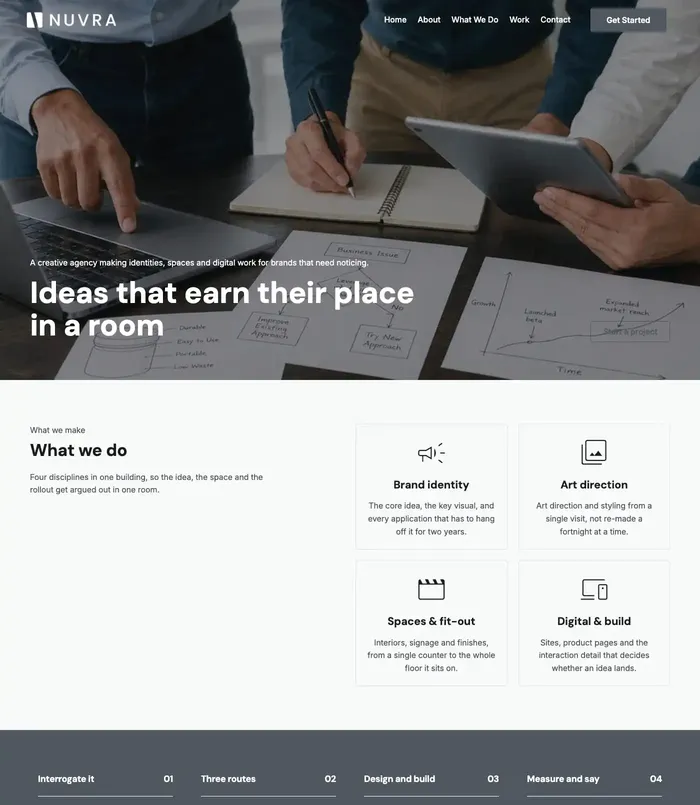
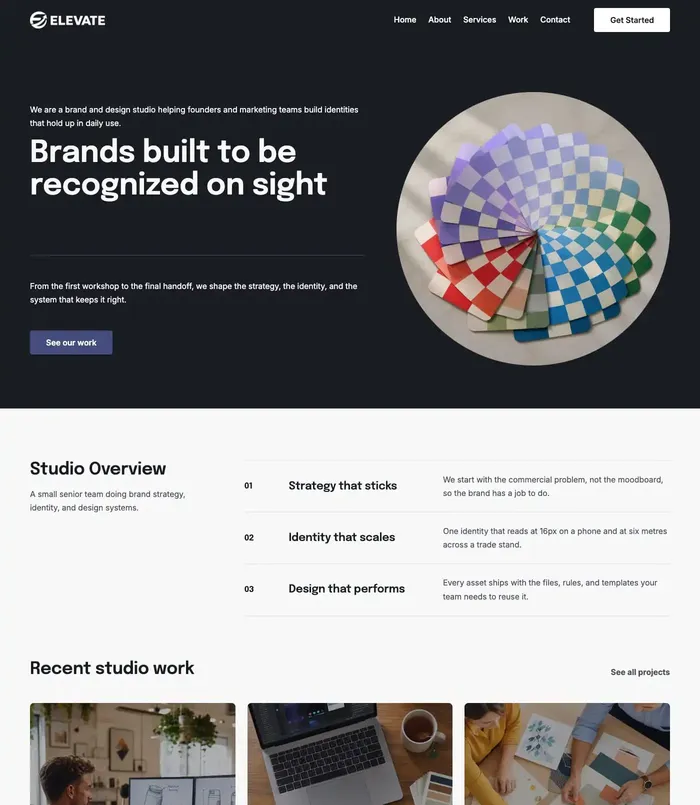
 Corporate 1Preview Corporate 1 (opens in a new tab)
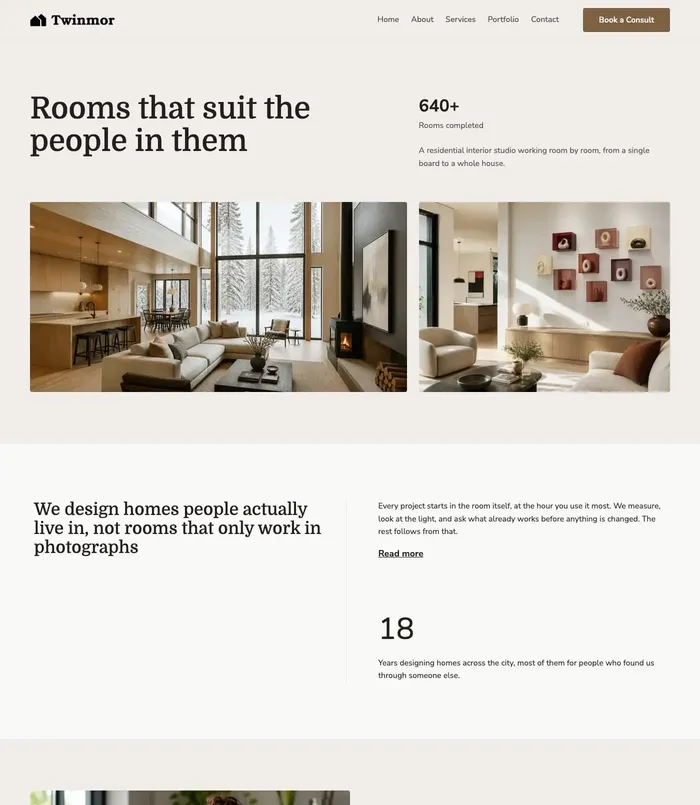 Interior DesignPreview Interior Design (opens in a new tab)
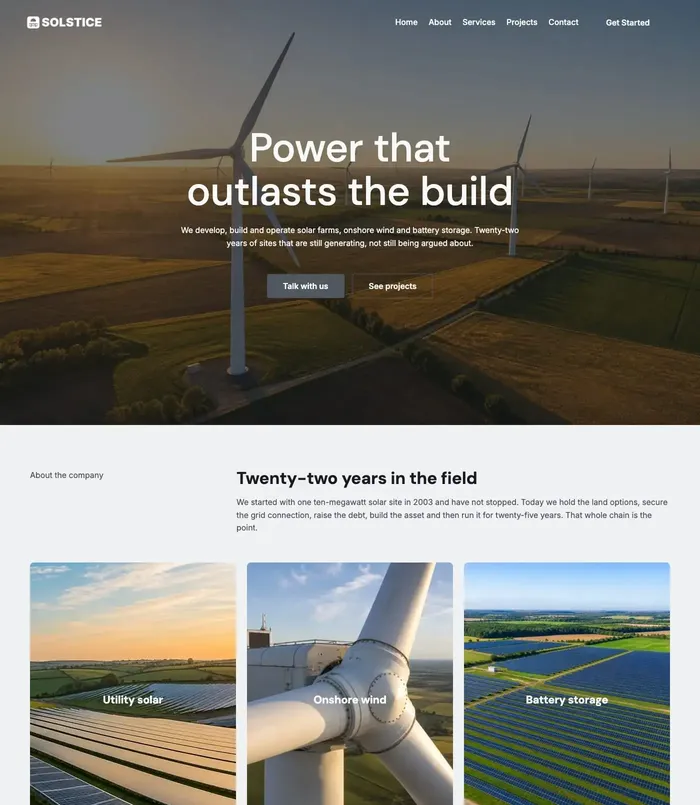 Solar Energy 1Preview Solar Energy 1 (opens in a new tab)
When you click Import, a wizard opens with four numbered steps. Nothing is changed on your site until you press the final import button on step 2.
- 1Check
- 2Options
- 3Import
- 4Done
Step 1: Check
PageCore checks your site (Checking this site…) and then shows only what needs your attention. If everything is fine you see a green line, Everything this demo needs is ready on this site, and a Next button.
Underneath is a summary of the starter site: how many pages and images it has and, if another starter site is already on your site, a note that importing this one removes it. Step 2 shows what goes.
Blue box: “PageCore will set these up for you first”
Nothing to worry about. It lists what PageCore will do for you during the import, for example:
- install and activate the PageCore FSE theme, or just activate it if it is already there;
- install and activate a plugin the demo uses, such as WPForms Lite for the contact form;
- apply the demo's matching style from the Style Library, so your site looks like the preview. The style name links to the Style Library in a new tab.
Yellow boxes: worth knowing, but you can carry on
- A plugin your account cannot set up: the demo uses a plugin that is not ready on this site, and your account cannot install or activate it (on a multisite network, only a super administrator can install plugins). You can import without it; the parts that need it, such as the contact form, are left out.
- A plugin PageCore does not install: the demo uses a plugin that PageCore never installs for you. You can import without it; install it yourself if you want those parts of the demo to work.
- WebP images are supported: if not, those images are imported at full size only.
- SVG icons can be checked: if your server lacks PHP's DOM extension, SVG icons cannot be checked, so their PNG versions are used instead.
- PHP has enough memory / enough time per request: if not, the import uses smaller batches and takes longer.
- A large demo: the box tells you how many images and roughly how many minutes to expect.
Red boxes: must be fixed before importing
The Next button stays disabled until these are fixed. Most need your host or a site administrator.
| Message | What it means and what to do |
|---|---|
| The theme this demo is built for | Your account cannot install or change themes, or on a multisite network the theme is not enabled for this site. Ask an administrator (on a network: enable it under Network AdminThemes). |
| Your account can import | Your account cannot create content or change site settings. Use an Administrator account. |
| Your account can upload media | Your account cannot add images to the Media Library. Use an Administrator account. |
| The uploads folder is writable | WordPress cannot save files. Ask your host to fix the permissions of the wp-content/uploads folder. |
| There is room on disk | Not enough free space for the demo's images. Free some space or ask your host for more. |
| An image library is installed | Neither GD nor Imagick is available. Ask your host to enable one of them. |
| The demo site is reachable | Your site could not reach the demo server. Try again in a few minutes; if it keeps happening, ask your host whether outgoing connections are blocked. |
Step 2: Options
Step 2 shows only what applies to your site. If there is nothing to decide, it says Nothing to decide. PageCore adds this demo to your site and removes nothing.
1. A starter site is already here
A site holds one starter site at a time. You see The … demo is currently on this site and a yellow box: If you import …, everything that was imported for the … demo is removed from this site first. It lists exactly what goes. Read it before you continue; see Replacing a starter site.
Below it is a tick box, I agree: remove the … demo and import this one. The Import button stays off until you tick it.
2. This demo uses SVG icons
Asked only once: when the demo has SVG icons, your site does not accept SVG uploads and you have not chosen before. You pick Use the SVG icons (recommended) or Use the PNG versions instead. PageCore remembers your answer; you can change it under PageCoreSettingsAdvanced. See SVG in a demo import.
3. Before the demo is imported
Tells you if the PageCore FSE theme will be installed and activated, or only activated. If the demo needs a plugin you do not have, such as WPForms Lite for its contact form, a ticked box offers Install and activate WPForms Lite (or Activate WPForms Lite when it is already installed). Leave it ticked so everything works as in the preview; WordPress then installs it from WordPress.org. Untick it to import without it; the contact form is then left out.
What gets imported
A summary at the bottom lists what will come in. When you are ready, click the blue Import name button. Use Back to return to step 1.
Step 3: Import
Keep this tab open and on screen. The import runs from your browser. Do not refresh, do not use the Back button and do not close the tab, or the import will stop partway. If that happens, you can carry on later; see Stopped or interrupted imports.
A progress bar shows how far along it is, with the current stage and a short running log underneath. You will see stages such as:
- Getting ready
- Importing categories and tags
- Importing forms
- Importing images
- Importing patterns
- Importing pages and posts
- Importing menus
- Importing templates
- Importing colours, fonts and spacing
- Reconnecting images and links
- Applying site settings
- Finishing up
Most imports take a few minutes. A large demo or a slow host can take longer. To stop early, click Stop the import.
Step 4: Done
You see … is imported. and how many items came in. You may also see:
- … things worth knowing about: click to open a short list of notes, for example a plugin that could not be installed, or SVG icons shown as placeholders.
- … items could not be imported: a list with the reason for each one. The rest of the site is imported normally.
- The “…” style is active now: the matching look from the Style Library has been applied. View more styles takes you there.
The What next box gives you four shortcuts: View your site, Edit your pages, Try another look in the Style Library and Change colours and fonts. Click Done to close the wizard.
What gets imported
| Item | Details |
|---|---|
| Pages and posts | Every page of the demo (Home, About, Services, Contact and so on), with their text, layout and blog posts. |
| Images | Copied into your own Media Library, so nothing is loaded from the demo server afterwards. |
| Menus | The navigation menus, pointing at your own new pages. |
| Templates, header and footer | The demo's page templates and its header and footer. |
| Colours, fonts and spacing | The demo's look, from the Styles panel and the matching Style Library style. Fonts are stored on your own site. |
| Site settings | The front page, site title and tagline, permalinks and a few other display settings. |
| Categories and tags | Those used by the demo's blog posts. |
| Contact form | Where the demo has one. See Contact forms. |
| Saved patterns | If the demo uses them. |
Never imported: user accounts, passwords, email addresses or any settings that affect who can log in or register. Links inside the demo are changed to point at your own site.
Every import keeps a record of what it created and changed. It is stored in your WordPress database, where it cannot be reached from the web.
Replacing a starter site
A site holds one starter site at a time, so importing another one replaces the one already there. Replacing means you get a different complete site, so the old starter site goes completely. Before anything happens, the wizard lists what will be removed, and the import waits until you tick I agree:
- its pages, posts, images, page templates, header and footer parts, menus, saved patterns, categories and tags;
- its contact form, with every message sent through it;
- any comments left on its pages and posts;
- the colours, fonts and spacing in the Styles panel, and the front page, site title and other settings it set (these go back to what they were before it was imported);
- any changes you made to its pages, and menu items that link to them.
What stays: pages, posts, images and forms that PageCore did not import. They are not deleted, but they can lose links or images that pointed at what was removed.
Once the import starts, replacing cannot be undone. If you have edited the old starter site's pages and want to keep that work, make a full backup of your site first (most hosts offer one-click backups).
Stopped or interrupted imports
If you click Stop the import, everything imported so far stays on your site, and step 4 offers Remove what was imported. Click it, then Yes, remove it to confirm. This removes everything that unfinished import created (with what depends on it, such as comments on its pages and messages sent through its form) and puts your site settings back. Content the import did not create is not deleted.
If the tab was closed, refreshed or lost its connection, the next time you open PageCoreStarter Sites a yellow box says An import was interrupted and how far it got. Click Carry on to continue from where it stopped. From there you can also stop it and remove what was imported.
If the import could not finish because of an error, step 4 explains what happened and offers the same Remove what was imported button.
A finished import has no remove button. To remove a starter site that imported successfully, either replace it with another starter site, or delete PageCore with Remove Data on Delete switched on.
Contact forms
Starter sites with a contact page use WPForms Lite, a free and widely used form plugin from WordPress.org. If you leave Install and activate WPForms Lite ticked on step 2, WordPress installs and activates it, and PageCore imports the demo's form and connects it to your Contact page.
- Messages go to your own email address: the Administration Email Address under SettingsGeneral. Never to an address from the demo. When the form asks for the visitor's email address, clicking Reply answers them.
- To change the form (fields, button text, where messages are sent), go to WPFormsAll Forms and edit it there.
- If WPForms Lite is not installed, the Contact page is imported without a form. Install WPForms Lite from PluginsAdd New Plugin and add a form to the page yourself, or import the starter site again with the box ticked (this replaces the copy already on your site, including any changes you made to it).
Send yourself a test message after importing. If it does not arrive, your host may not send email reliably; an SMTP plugin usually fixes that.
After the import
- Change text and images: go to Pages, open a page and click on any text or image to change it.
- Header, footer and templates: go to AppearanceEditor.
- Menus: in AppearanceEditorNavigation.
- Site title and logo: in the header template, or under SettingsGeneral.
- Fine-tune colours and fonts: in AppearanceEditorStyles, or pick a whole new style in the Style Library.
- Placeholder icons: if you chose PNG or placeholders for SVG, see Replacing placeholder icons.
Design Library
Open the Design Library
The Design Library adds ready-made sections and complete pages to the page you are editing. Live previews are drawn from the real blocks, so what you see is what you get.
- Open any page or post in the editor (PagesAdd New Page, or edit an existing one). It also works in the Site Editor, under AppearanceEditor.
- Click the blue PageCore Library button in the toolbar at the top, just after the editor's own tools.
- The library opens over the editor, with three tabs: Patterns, Site Kits and Favorites.
 PageCore Library
In the top-right corner of the library are a refresh button, which fetches the newest patterns and kits, and a close button (×).
Don't see the button? It shows only for Administrators, and only while both Design Library and Starter Sites are switched on in PageCoreSettings. The Design Library reads its designs from the starter sites, so it needs that feature on.
Insert a pattern
A pattern is a ready-made section of a page: a hero banner, a list of services, a team grid, pricing tables, testimonials and so on.
- In the editor, click where you want the section to go (for example on the block it should follow).
- Open the library on the Patterns tab.
- Pick a category on the left, or type in Search.
- Hover over a pattern and click Insert.
The pattern goes in where you were working. If a section cannot go there (for example inside a small column), it is added at the end of the page instead, and the editor scrolls to it. A message confirms it, for example Hero 1 inserted, with 2 images copied to your media library.
Changed your mind? Press Ctrl + Z (Cmd + Z on a Mac) or the editor's Undo button. Inserting never replaces anything already on the page.
Patterns are sorted into categories such as:
- Hero
- Page Title
- About
- Mission & Values
- Services
- Why Choose Us
- Process
- Statistics
- Projects
- Gallery
- Team
- Testimonials
- Pricing Plans
- CTA
Pattern colour styles
Under the categories, Styles: shows four round swatches. Click one to preview every pattern in that colour treatment. The pattern is then inserted in the colour you chose.
- Default
- Soft
- Dark
- Accent
The real colours come from your site's current style, so the swatches change when you change style. Patterns designed with a dark background keep their own colours. The swatches work only while the PageCore FSE theme is active.
Alternate Default and Soft for neighbouring sections so the page is easy to scan, and use Dark or Accent for one standout section, such as a call to action.
Insert a whole page
The Site Kits tab holds every starter site as a kit, with all of its pages. You can take any single page from any kit, without importing the whole starter site.
- Create a new, empty page: PagesAdd New Page.
- Open the library and choose the Site Kits tab. Search finds pages and sites by name.
- Click a kit to open it. A large preview appears with the kit's pages listed beside it.
- Click a page to preview it. Live Preview opens that page on the demo site in a new tab.
- Click Insert Template.
The page's blocks are added to the end of what is already on the page, so starting from an empty page gives you an exact copy. Its images are copied into your Media Library, and its links point at your own site (for example a “Contact us” button goes to your-site/contact/, so create a page with that address too).
A page from a kit brings only the page content. The header, footer and colours come from your own site, so the page fits in with the rest of it. If a kit page has a contact form, you may need to choose your own form in it (click the form block, then pick a form in the block settings).
Favorites
Click the heart on any pattern, kit page or kit (or Add to favorites in an open kit) to save it. Find them again on the Favorites tab, under My Favorites, where you can filter by Pattern, Pages or Site Kits and search. Click the heart again to remove it.
Favorites belong to your user account, so each administrator has their own list.
Images in inserted designs
- Every image is copied into your Media Library when you insert, so nothing on your pages is loaded from pagecore.net or the demo site. An image that was already copied before is reused, not copied twice.
- The images are examples. Replace them with your own: click the image, then Replace in the block toolbar.
- If a design uses SVG icons and your site does not accept SVG, PageCore asks first. See SVG in the Design Library.
Open it automatically on new pages
Go to PageCoreSettings and, under Design Library, tick Open the Design Library automatically on new pages. The library then opens whenever anyone starts a new page or post. It is off by default.
Style Library
How styles work
A style is a complete look for the whole site: a colour palette, a pair of fonts, text sizes, spacing and corner shapes. Changing the style changes every page at once and never touches your text or images.
Go to PageCoreStyle Library. It has three tabs:
- Library: all available styles. Import the ones you like.
- My Styles: the styles you have imported. Set one as the site's style.
- Fonts: the fonts your imported styles downloaded.
Using a style is two steps, import then set, so you can collect a few and switch between them freely.
Styles are made for the PageCore FSE theme, so the Style Library appears only while that theme is active. If it is not, use the theme notice at the top of PageCoreSettings.
Import a style
- On the Library tab, hover over a style card.
- Click Preview (when shown) to see it on a live site, or Import Style to add it.
- The button shows Importing… while the style's fonts are downloaded to your site. Wait for the message “…” was imported.
Importing does not change your site yet. An imported style shows Imported on the Library tab.
Set a style for the site
- Open the My Styles tab.
- Hover over a style and click Set as site style.
- The style is applied straight away and marked Active. Visit your site to see it.
Switch as often as you like; your pages are not touched. To remove a style you no longer want from My Styles, click the round × on its card (the active style cannot be removed). Its fonts stay on the Fonts tab until you delete them there.
Importing a starter site applies that starter site's style for you.
Your own editor changes
If you changed colours, fonts or spacing yourself in AppearanceEditorStyles, those changes sit on top of any style, so a new style will not fully show. My Styles warns you about this, and a box Reset my own changes appears next to each style, ticked. Leave it ticked to see the style exactly as designed. Untick it to keep your own changes on top.
Back to the theme default
At the bottom of My Styles, Back to the theme has a Reset to theme default button. It stops using any style and shows the colours, fonts and spacing the theme comes with. Tick Also reset the changes I made in the editor if you want those cleared too. Your imported styles are kept, so you can set one again at any time.
Fonts
The Fonts tab shows every font your imported styles downloaded, each written in its own typeface. Fonts are stored on your own site, so visitors' browsers never load them from another server. Two styles that use the same font share one copy.
- With more than two styles, buttons at the top let you show only the fonts of one style.
- Click Delete to remove a font. If a style still uses it, the confirmation names that style; text in that font then falls back to another font.
While any Style Library button is working, it shows a spinner and the other buttons wait, so a second click cannot send the action twice.
The styles
The free Style Library includes these styles:
- SolsticeManrope
- NuvraDM Sans + Inter
- TwinmorDomine + Nunito Sans
- ElevateEpilogue + Inter
- VenturoArchivo
SVG icons
Why SVG needs a decision
SVG is an image format often used for icons and logos. It stays sharp at any size, but unlike a photo it can also carry hidden code, which is why WordPress does not accept SVG uploads by default.
Some starter sites and patterns use SVG icons. When your site does not accept SVG, PageCore never decides for you and never leaves an icon loading from the demo server. It asks you once, remembers your answer, and never changes which files your site accepts as uploads.
Whatever you choose, every SVG PageCore brings in is cleaned first: it is rebuilt from a list of safe parts, and anything else (scripts, links to other servers, embedded web pages) is removed.
SVG in a demo import
On step 2 of the import wizard, under This demo uses SVG icons, you have two choices:
| Choice | What happens | Good for |
|---|---|---|
| Use the SVG icons (recommended) | The demo's SVG icons are cleaned and imported. Which files your site accepts as uploads does not change. | Almost everyone. The site looks exactly like the preview. |
| Use the PNG versions instead | No SVG is imported. Icons come in as PNG images, which look the same at normal sizes. An icon with no PNG version is shown as a placeholder for you to replace. | Sites that must not hold any SVG file. |
PageCore remembers your answer and does not ask again, in the wizard or in the Design Library. You can change it with the SVG Icons setting. If your site already accepts SVG uploads, this question is not asked.
SVG in the Design Library
The first time you insert a pattern or page with SVG icons on a site that does not accept SVG, a small question appears before anything is added:
- Use SVG icons: copies the cleaned icons into your Media Library and inserts the design. Which files your site accepts as uploads does not change.
- Use placeholder icons: inserts the design with a simple placeholder icon in place of each SVG.
- Cancel (or the Esc key): nothing is inserted, and nothing is remembered.
When placeholders are used, the confirmation message says how many icons were replaced.
The SVG Icons setting
You can change your answer at any time:
- Go to PageCoreSettings.
- Click Advanced at the bottom to open it.
- Use the SVG Icons switch. It saves straight away, and a small Saved appears.
- On: the SVG icons that come with starter sites and designs are used. Each one is cleaned of anything unsafe before it is saved.
- Off: a PNG version or a placeholder icon is used instead.
Until you choose, the screen says Not chosen yet, and PageCore asks the first time a starter site or a design has SVG icons. The switch does not change which files your site accepts as uploads.
If your site already accepts SVG uploads, because of another plugin or your theme, the switch shows on and cannot be moved: the icons are used, and PageCore does not control that setting.
PageCore cleans the SVGs it brings in. It does not clean SVG files you upload yourself, or files that were already in your Media Library.
Replacing placeholder icons
A placeholder icon is a plain grey star in a rounded square. It ships with PageCore, so it is stored on your own site. To put your own icon in its place:
- Open the page in the editor and click the placeholder icon.
- Click Replace in the toolbar above it.
- Choose an image from the Media Library, or upload a new one (PNG, JPG or WebP; or SVG, if your site accepts SVG uploads).
For a matching set of icons, free icon sites usually offer each icon as PNG as well as SVG.
Settings
The Settings screen
Go to PageCoreSettings to choose which parts of PageCore run on your site. Turn on only what you need.
Each feature has a switch. A change saves the moment you click it, and Saved appears beside it. Turning a feature off never removes what it created: your pages, styles and settings stay, and turning it back on picks up where it left off.
When you switch on a feature with its own screen, a note asks you to reload the page so the PageCore menu updates. Features that are on and have a screen show an Open button.
| Feature | What it does | Starts |
|---|---|---|
| Content & Design | ||
| Starter Sites | Import complete starter websites with content, media and styles. | On |
| Design Library | The PageCore Library button in the editor. Needs Starter Sites switched on. Has the option to open automatically on new pages. | On |
| Style Library | Restyle the whole site with ready-made colours, fonts and spacing. Shown only while the PageCore FSE theme is active. | On |
| Editor | ||
| Tablet Navigation | Shows the mobile menu button on tablets as well as phones. | On with the PageCore FSE theme, off with other themes |
| Absolute Position | Adds an Absolute choice for placing a block over others. | On |
| Advanced (click to open) | ||
| SVG Icons | Use the SVG icons that come with starter sites and designs, cleaned first. Off uses PNG or placeholder icons. See The SVG Icons setting. | Asked the first time |
| Remove Data on Delete | What deleting the plugin takes with it. See below. | Off |
Tablet Navigation
Out of the box, WordPress shows the full menu on anything wider than a phone. On a tablet a long menu can then wrap onto two lines. With Tablet Navigation on, menus show the menu button (the “hamburger”) on screens up to 960 pixels wide, so tablets get the tidy phone-style menu.
It applies to every Navigation block whose Overlay Menu setting is Mobile (the usual setting). To turn it off for one menu only:
- In AppearanceEditor, open the header and click the menu (Navigation block).
- In the settings panel on the right, find Tablet Menu.
- Switch off Use the menu button on tablets, then save.
Absolute Position
Lets a block float on top of the content around it instead of pushing it down, for example a badge on a photo, a decorative shape, or a header laid over a hero image.
- Click the block (for example a Group).
- In the settings panel on the right, open the Styles tab.
- Open Absolute Position and switch on Absolute.
The block then sits over what is around it, takes the full width of the area it is placed in, and stays on top. It is offered only for blocks that have WordPress's own Position setting, and that setting must be left on Default (Sticky and Fixed take priority).
Check the result on a phone-sized preview too (the device icon at the top of the editor), because overlapping layouts can need different spacing on small screens.
Remove Data on Delete
In PageCoreSettingsAdvanced. It is off by default, so deleting the plugin by accident never removes anything.
When it is on and you then delete PageCore from the Plugins screen, PageCore also removes:
- its settings and your saved Design Library favorites;
- the starter sites it imported, with what depends on them: their pages, images, menus, templates and contact forms, the comments on those pages, the messages sent through those forms, and any changes you made to them;
- the fonts the Style Library downloaded.
The site settings a starter site changed (front page, site title and so on) are put back. Content PageCore did not import stays. While the switch is on, a red warning under it reminds you what deleting will remove.
Your site
Your content and safety
- PageCore only removes what PageCore imported, together with what depends on it, and only when you replace a starter site, remove an unfinished import, or delete the plugin with Remove Data on Delete switched on. It has no “reset the site” option.
- Your own settings are kept safe. Before a starter site changes your Styles or site settings, PageCore keeps a copy. Replacing or removing the starter site puts them back.
- Everything is checked. Imported content goes through WordPress-style safety filters, SVG files are rebuilt from a safe list, and contact form emails always go to your own address.
- Plugins and themes come only from WordPress.org, and only when you agree to it.
- No tracking. PageCore has no analytics. It contacts pagecore.net, demos.pagecore.net and WordPress.org only when you use a feature that needs them, never on a schedule. Read the privacy policy for the details.
For any site that already has real content, take a backup before importing or replacing a starter site. It is quick, and it is the one way to undo anything.
Deactivating or deleting PageCore
- Deactivating (Plugins › Deactivate) only stops PageCore running. Everything stays, including your settings. Imported pages stay in place, because they are ordinary WordPress blocks; parts that use PageCore's colour schemes, Tablet Navigation or Absolute Position lose that styling.
- Deleting also leaves everything in place, unless you switched on Remove Data on Delete first.
- Imported contact forms are only ever deleted through WPForms. If WPForms is not active when PageCore is deleted, the form stays; delete it under WPFormsAll Forms if you no longer want it.
Multisite networks
- Each site in the network has its own Starter Sites, styles, fonts, settings and uploads. Importing on one site never touches another.
- A site administrator can import on their own site. Installing themes and plugins needs a network (super) administrator: the theme must be enabled for the site under Network AdminThemes, and plugins a demo uses must be installed by a super admin. The wizard says clearly when this is the case.
- Remove Data on Delete is chosen by each site for itself. Design Library favorites belong to users, who are shared by the whole network, so they are removed only when every site that used PageCore has the switch on.
Troubleshooting
A yellow notice says the theme is required
Click Install and activate (or Activate) in the notice. If it says to ask a site administrator, your account cannot change themes; ask whoever manages the site, or on a network the super administrator.
The import stopped or the tab closed
Open PageCoreStarter Sites again and click Carry on in the yellow box. Nothing is lost; it continues from where it stopped. See Stopped or interrupted imports.
The import is very slow
Large demos and modest hosting take longer, especially when step 1 warned about memory or time limits. Keep the tab open and on screen; switching to another tab or letting the computer sleep can slow or pause it. If it stops, use Carry on.
“Could not read …” after Sync library
Your site could not reach one of the demo sites at that moment, so that starter site is missing or out of date in the list. Try Sync library again in a few minutes. If it keeps failing, ask your host whether outgoing connections to pagecore.net and demos.pagecore.net are allowed.
A plugin could not be installed
The message says why, for example that your account cannot install plugins, or that the plugin needs a newer PHP version than your site runs. The rest of the demo still imports. Install the plugin later from PluginsAdd New Plugin, or ask your host to update PHP.
The Contact page has no form
WPForms Lite was not installed or not active during the import. Install and activate it, then either add a form to the Contact page (WPForms block) or import the starter site again with Install and activate WPForms Lite ticked (see Replacing a starter site).
I can't see the PageCore Library button
- Make sure you are logged in as an Administrator.
- In PageCoreSettings, switch on both Starter Sites and Design Library.
- Reload the editor. The button sits in the top toolbar, after the editor's own tools.
Patterns look different from the previews
The designs are made for the PageCore FSE theme. With another theme, spacing and colours can differ. Activate PageCore FSE, then set a style in the Style Library.
A new style doesn't show completely
You probably changed colours or fonts yourself in AppearanceEditorStyles. Set the style again with Reset my own changes ticked. See Your own editor changes.
Some icons are grey stars
Those are placeholder icons, used because SVG was declined. Replace them with your own images; see Replacing placeholder icons. Or switch on SVG Icons under PageCore > Settings > Advanced and insert the design again.
Images import at full size, or WebP looks wrong
Step 1 warned that your host cannot resize WebP images. They still display, just without smaller sizes. Ask your host to enable WebP support in GD or Imagick.
Contact form messages don't arrive
Check the Administration Email Address under SettingsGeneral and your spam folder. Many hosts don't send email reliably; an SMTP plugin usually fixes it.
Glossary
- Starter site / demo
- A complete ready-made website you can import, with all its pages, images, menus and styles.
- Block
- One piece of a page in the WordPress editor: a heading, paragraph, image, button, group and so on.
- Pattern
- A ready-made section made of several blocks, such as a hero banner or a pricing table.
- Site Kit
- A starter site's set of pages in the Design Library, from which you can insert any single page.
- Style
- The site-wide colours, fonts, sizes and spacing. Changing it changes every page at once.
- Block theme
- A modern WordPress theme whose header, footer and templates are built from blocks and edited in Appearance › Editor. PageCore FSE is one.
- SVG
- An image format for icons and logos that stays sharp at any size but can contain code, so WordPress blocks it by default.
- Placeholder icon
- A simple grey icon PageCore uses in place of an SVG you chose not to import, for you to replace.
- Media Library
- Where WordPress stores your site's images and files (Media in the admin menu).
Still need help?
Ask on the PageCore support forum on WordPress.org: log in with your free WordPress.org account and start a new topic. To help us answer quickly, please include your WordPress and PHP versions (from ToolsSite HealthInfo), which starter site or feature you were using, what you clicked, and the exact message you saw.
The forum is public, so never post passwords or other private details.
Open the support forum (opens in a new tab)Is PageCore working well for you? Leave a review on WordPress.org (opens in a new tab)