
How MCP lets Claude work inside your WordPress site
MCP lets assistants such as Claude use your WordPress site directly. What it is, how the MCP Adapter works, what it can do and how to keep it safe.
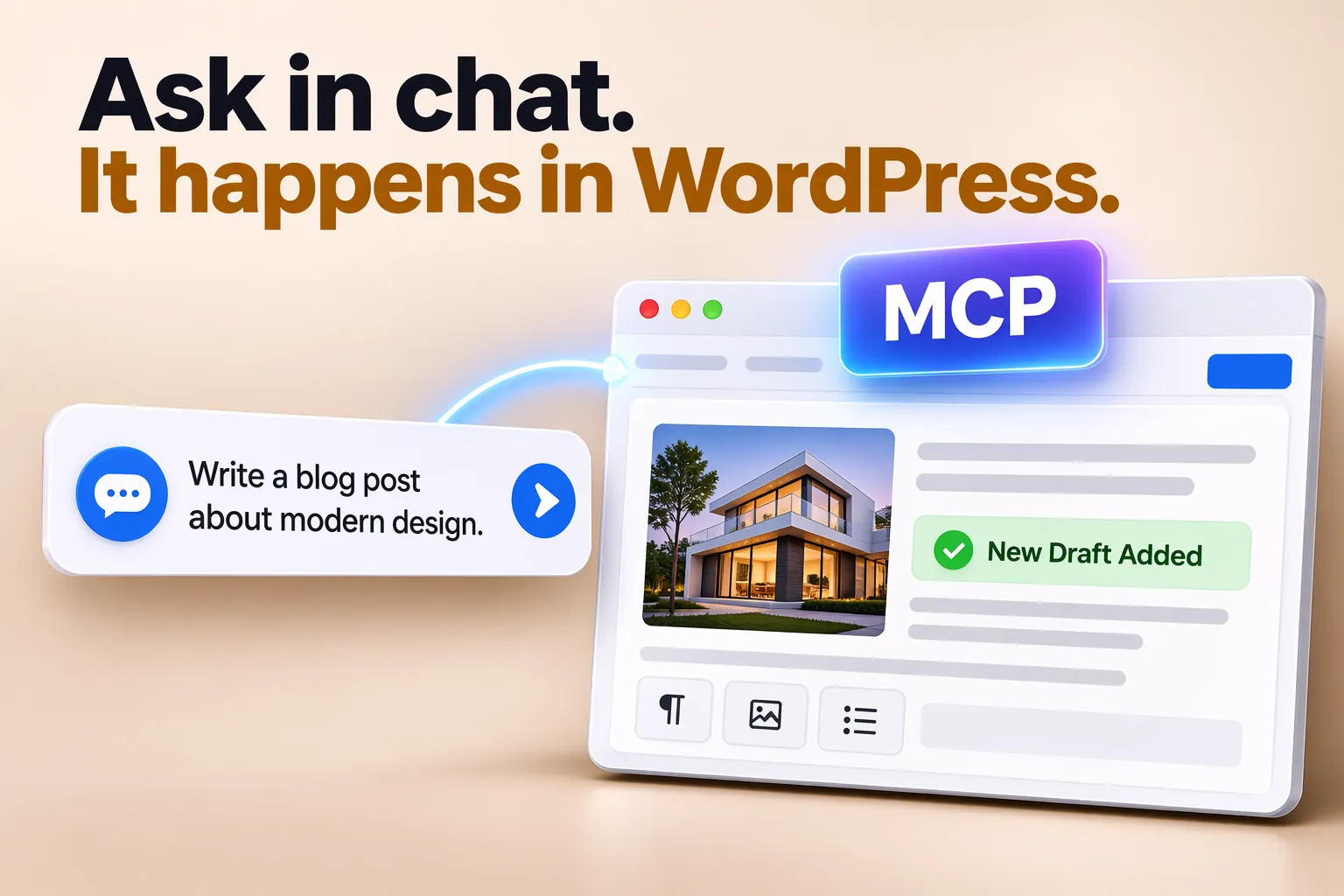
Imagine asking Claude to “draft a post about our summer opening hours” or “find the pages that have no description”, and it simply does it, in your WordPress. That is what MCP makes possible, and WordPress now supports it through an official plugin.
Here is what MCP is, how it works in WordPress, what it can do today, and how to keep it safe.
In short
- MCP, the Model Context Protocol, is an open standard for connecting AI assistants to tools and data.
- WordPress’s official MCP Adapter plugin turns the site’s abilities into tools an assistant can use.
- The assistant signs in as a WordPress user you choose, with an application password you can take back.
- What it can do depends on the abilities your WordPress and plugins offer.
- Use a separate user with limited rights, allow only what you need, and try it on a test site first.
What MCP is
Anthropic introduced the Model Context Protocol in November 2024 as an open standard: one common way for AI assistants to connect to apps, files and services, instead of a different connection for each. Claude and many other assistants and tools now support it.
Think of it as a universal plug. An app offers an MCP “server” describing what it can do; an assistant connects to it and can then use those actions when you ask.
How it works in WordPress
- Abilities. Since WordPress 6.9, WordPress and plugins can describe what they can do as “abilities”, such as creating a draft or finding a product, in a form machines understand.
- The MCP Adapter. This official plugin publishes the abilities a site chooses to share as MCP tools.
- The connection. An assistant such as Claude connects to your site over the web, or on your own computer through WP-CLI, and signs in as a WordPress user with an application password.
- The request. You ask in plain words; the assistant picks the right tools and shows you what it did.
What you can ask it to do
It depends on which abilities your site offers, and that list grows as plugins add their own. Typical examples:
- Draft a post or a page from your notes, ready for you to review.
- Find content: posts on a topic, pages without a description, old pages to update.
- Answer questions about your site, such as which plugins are active.
- In shops and booking plugins that offer abilities: look up products, orders or bookings.
Keep it safe
- A separate user for the assistant, with the smallest role that does the job, such as Author instead of Administrator.
- An application password for that user, which you can take back at any time under Users.
- Only the abilities you need. Abilities are shared with MCP only when they are marked as public.
- A test site first. See what it does before you let it near your live site.
- Review its work. Let it create drafts; you publish.
Who it is for today
Setting it up still means installing a plugin and adding a few lines to your assistant’s settings, so today it suits developers and site owners who enjoy trying new things. Expect it to get simpler as assistants and hosts add one-click connections. For the wider picture, see WordPress 7.0 put AI into WordPress itself.
Questions
Is the MCP Adapter part of WordPress?
No. It is an official plugin from the WordPress AI team. The abilities it shares come from WordPress itself and from your plugins.
Does it work only with Claude?
No. MCP is an open standard, and any assistant or tool that supports MCP can connect.
Can the assistant break my site?
It can only do what the user it signs in as is allowed to do, through the abilities you share. A limited role and a test site keep the risk small.
Do I need to know code?
Today, a little: you add a plugin and a few settings in your assistant. Day-to-day use is plain conversation.
Sources

Keep reading

Design
7 font pairings that make a website look expensive
Seven font pairings that make a website feel premium, from real designs: where each works, why it looks expensive, and how to use it well.

Design
Colour palettes for 10 industries, from real website designs
Ten website colour palettes, one per industry, from real designs: the four colours of each, why they work and the starter site that uses them.
AI and the web
AI agents are starting to use websites. Is yours ready?
AI assistants now open websites, fill in forms and compare options for people. What they need from your site, and a 10-point check to get ready.