
WordPress 7.0 put AI into WordPress itself: what it means for your website
WordPress 7.0 added a built-in AI connection. What changed, what you can use today, what to watch for, and what it means for a small business website.
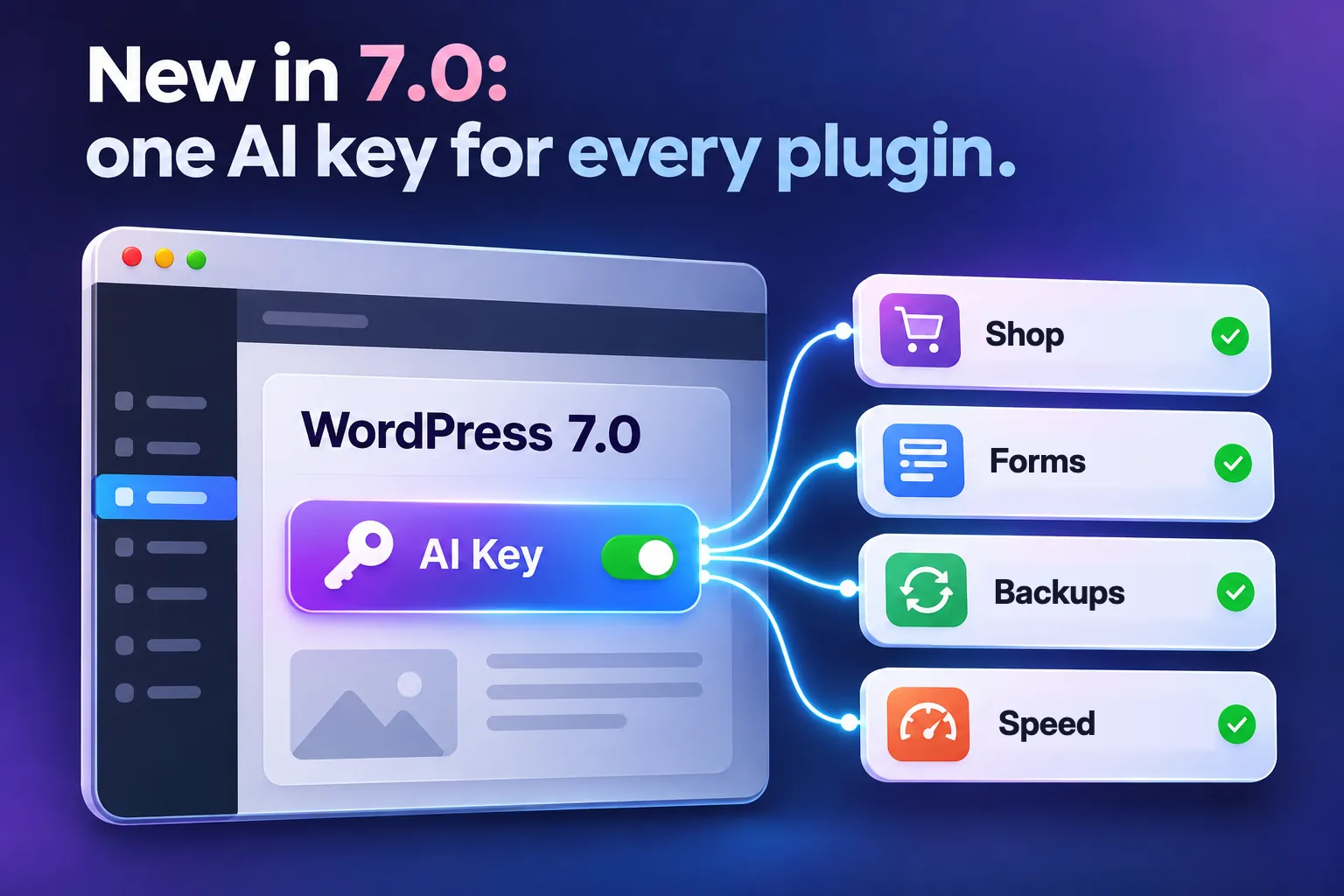
On 20 May 2026, WordPress 7.0 “Armstrong” added something new to WordPress itself: a built-in way to talk to AI services such as Claude, ChatGPT and Gemini. It does not write your pages for you, and nothing happens until you switch it on. But it changes what plugins, and AI assistants, can do with your website.
Here is what changed, what you can use today, what to watch out for, and what it means for a small business site.
In short
- WordPress 7.0 added a shared AI connection to WordPress itself. It is plumbing, not a writing robot.
- You connect an AI provider once, under Settings › Connectors. Anthropic (Claude), Google (Gemini) and OpenAI (ChatGPT) are there by default.
- Plugins then use that one connection, instead of each asking for its own key.
- The official AI plugin adds the first tools: title, excerpt and alt text suggestions, and image generation.
- With the MCP Adapter plugin, an assistant such as Claude can work with your site directly. Give it a user with limited rights.
What actually changed
Until now, every AI plugin did its own thing: its own settings page, its own API key, its own way of talking to each AI company. WordPress 7.0 gives them one shared way, in three parts:
- The AI Client: one built-in way for WordPress and its plugins to talk to AI models, whichever company makes them.
- Connectors: a new screen, Settings › Connectors, where you connect your AI providers. Anthropic, Google and OpenAI are listed by default, and plugins can add others.
- Abilities: a list of things a site can do, such as “create a draft” or “find a product”, described so that AI tools can understand them. It arrived in WordPress 6.9; 7.0 brings it into the editor.
Think of it as a new socket in the wall. On its own it does nothing, but from now on every AI tool can plug into the same one.
What you can do with it today
WordPress 7.0 itself does not add a “write this for me” button. The first tools come from the official plugin made by the WordPress AI team, which is simply called AI:
- Title suggestions for posts.
- Excerpt suggestions, the short summary under a post’s title.
- Alt text for images: a short description for people who use screen readers.
- Image generation and editing, in the editor and the Media Library.
The first three are labelled experiments: they may change or disappear between versions, so try them on a test site first. Each tool sends your text or image to the AI provider you connected when you use it.
Expect more plugins to follow. SEO, forms, translation and shop plugins can now use your one AI connection, instead of each asking you for a key of its own.
AI assistants that can work on your site
The bigger change works the other way round: AI assistants working with your WordPress site. The official MCP Adapter plugin turns a site’s abilities into tools that an assistant can use, through MCP (Model Context Protocol), the open standard that Claude and other assistants use to connect to apps. How MCP lets Claude work inside your WordPress site explains it in more detail.
In practice, you could ask Claude to “draft a post about our new opening hours” or “list the pages that have no description”, and it does the work in your WordPress, through the abilities your site offers. It signs in as a WordPress user you choose, with an application password you can take back at any time.
Today this is aimed at people who are comfortable with a few setup steps. If you try it, create a separate user with the smallest role that does the job, and allow only the abilities you need.
Your API key and your data
- Nothing goes to an AI company until you connect one under Settings › Connectors.
- A key you type on that screen is saved as a site setting: hidden on screen, but not encrypted in WordPress 7.0, and other plugins on the site can use it. If your host allows it, put the key in
wp-config.phpor an environment variable instead; WordPress looks there first. - AI services usually charge per use. Set a monthly spending limit in your provider account.
- Check what a feature sends before you use it on customer details.
Other changes in 7.0 you will notice
- A fresher admin colour scheme, and a command palette: press ⌘K on a Mac or Ctrl+K on Windows to jump to any screen.
- A Fonts page for the fonts on your site.
- Visual revisions: slide through earlier versions of a page and see how it looked.
- New blocks, including Breadcrumbs and Icons, and a way to hide a block on phones, tablets or desktops.
- Real-time collaboration, several people editing one page at the same time, was held back for a later version.
What it means for a small business website
For most site owners nothing changes overnight, and that is fine. Three things are worth doing:
- Keep WordPress up to date. Several 7.0 updates have followed the first release, including security fixes.
- Decide whether you want AI help at all. If you do, pick one provider, connect it once and set a spending limit.
- Build with WordPress’s own blocks. The new AI tools work with what WordPress understands: blocks, patterns and styles. Pages made of standard blocks are the easiest for them to read and change.
That last point is why every PageCore starter site, section and style is made only with WordPress’s own blocks: what you import is ready for the AI tools WordPress is building around them.
What comes next
The AI parts of 7.0 are foundations. The WordPress AI team keeps adding experiments to the AI plugin, the MCP Adapter follows the MCP standard as it develops, and more plugins will use the shared connection. Over the next year the useful question is not “will my site use AI?”, but “which jobs do I want help with, and from which provider?”
Questions
Does WordPress 7.0 write content for me?
No. WordPress 7.0 adds the connection to AI services. Writing tools come from plugins, such as the official AI plugin’s title and excerpt suggestions.
Do I need an AI account to use WordPress 7.0?
No. Everything works as before without one. The AI parts do nothing until you connect a provider under Settings › Connectors.
Which provider should I choose: Claude, ChatGPT or Gemini?
Any of the three works with the Connectors screen. Pick the one you already use and trust. Because plugins use the shared connection, you can switch later in one place.
Is it safe to let an AI assistant work on my site?
Start on a test site. Use a separate WordPress user with a limited role and an application password you can take back, and allow only the abilities you need.
Does using AI cost money?
Usually yes: AI providers charge for each use of their models. Set a spending limit in your provider account.
Do PageCore starter sites work with WordPress 7.0?
Yes. PageCore needs WordPress 7.0 or newer, and its starter sites, sections and styles are made with WordPress’s own blocks.
Sources

Keep reading
AI and the web
AI agents are starting to use websites. Is yours ready?
AI assistants now open websites, fill in forms and compare options for people. What they need from your site, and a 10-point check to get ready.
AI and the web
How people find businesses through ChatGPT, Claude and Perplexity now
More people ask AI assistants instead of searching. Where ChatGPT, Claude and Perplexity get their answers, and what helps your business show up.

Design
7 font pairings that make a website look expensive
Seven font pairings that make a website feel premium, from real designs: where each works, why it looks expensive, and how to use it well.