
AI images for websites: what works, what looks fake, and the rules
How to use AI images on a business website: where they work, the signs that make them look fake, and the rules on copyright and labels.
AI image tools can now make photos that look real, in seconds and for very little money. Used well, they fill a website with consistent, on-brand pictures. Used badly, they make a business look fake, which costs more than the pictures saved.
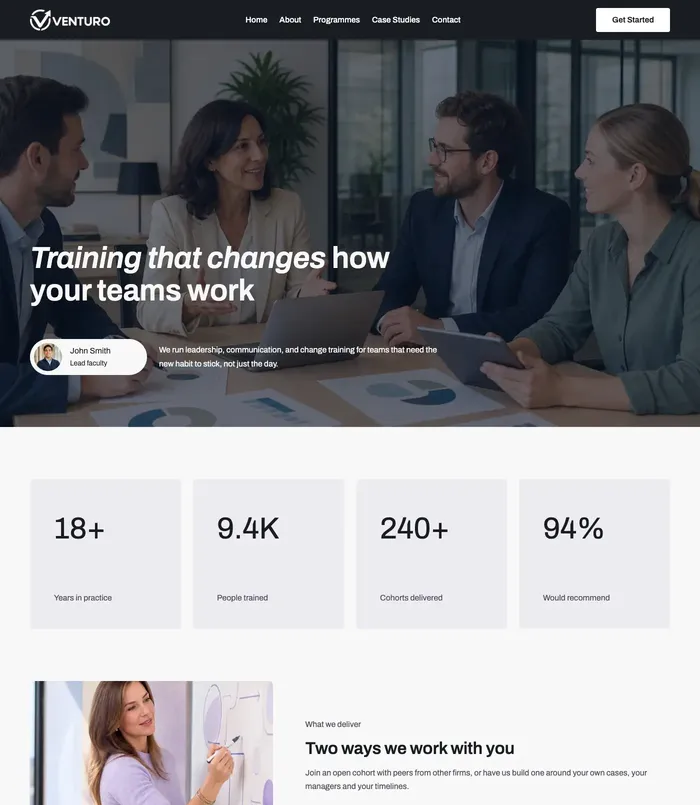
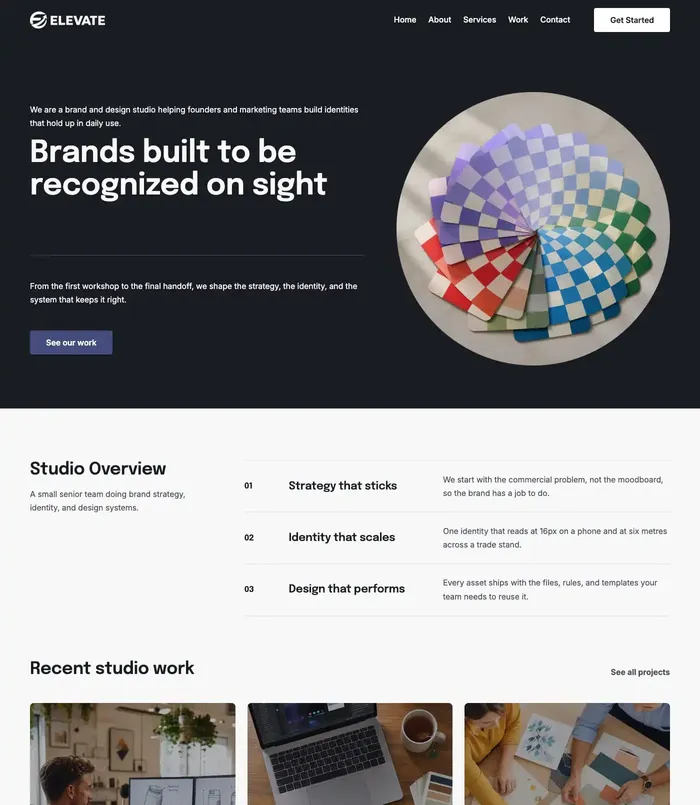
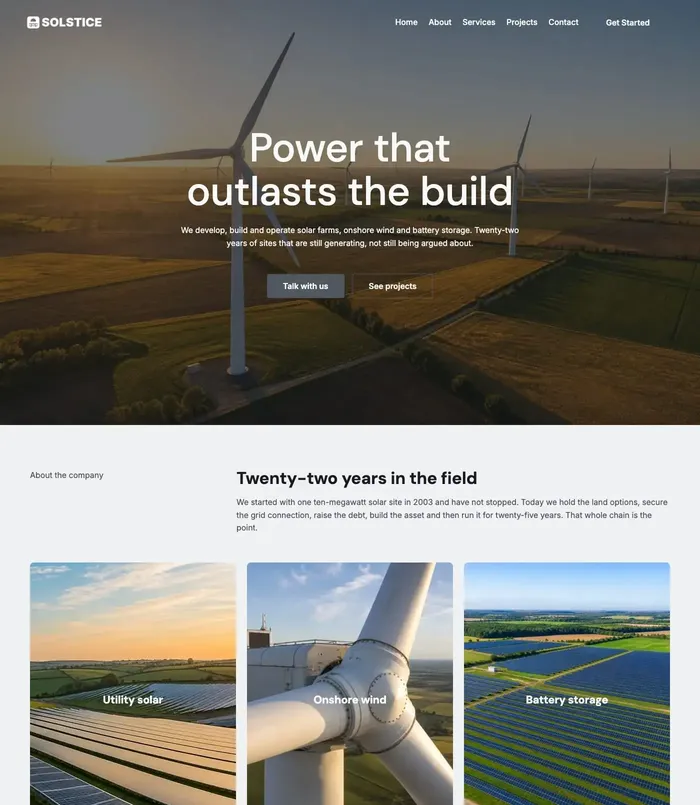
We make the photos in PageCore’s starter sites with AI, from our own prompts, so this is what we have learned about what works, what gives AI images away, and the rules to know.
In short
- AI images work best for settings, food, objects, textures and illustrations, not for your real team or products.
- Fake-looking signs: odd hands, garbled text, plastic skin, the same face everywhere, impossible light.
- Write prompts like a photographer: subject, setting, light, lens, mood, and what to avoid.
- In the US, a prompt alone does not make you the author of an image, so others may be free to reuse it.
- In the EU, realistic AI images that could mislead people must be labelled from 2 August 2026.
Where AI images work, and where they do not
- Good fits: interiors and settings, food styling, close-ups of materials, scenes that set a mood, illustrations and backgrounds.
- Poor fits: your real team, your real products, before-and-after results, your actual premises. Visitors expect those to be real, and finding out they are not damages trust.
What makes an AI image look fake


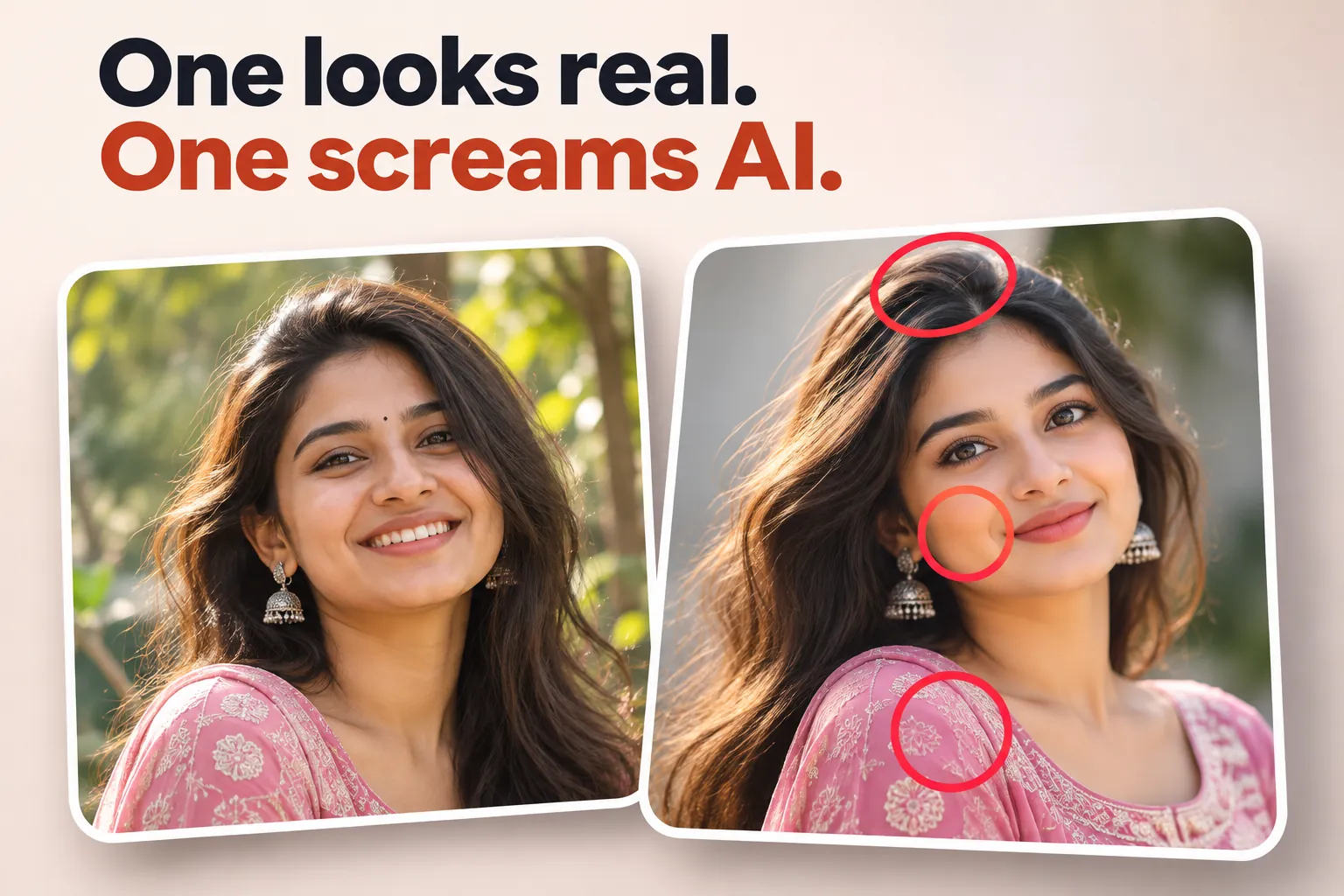
- Hands with the wrong number of fingers, and objects melting into each other.
- Letters and logos that look almost, but not quite, like writing.
- Skin that is too smooth, and teeth and eyes that are too perfect.
- The same face, pose or composition repeated across a site.
- Light and reflections that could not happen, and an overall glossy “AI glow”.
The fixes: make several versions and pick the most natural, crop away problem areas, ask for soft natural light and small imperfections, and keep one consistent style across the whole site.
How to write a prompt that works
Describe the photo as a photographer would set it up:
- Subject and action: “a barista pouring milk into a cup”.
- Setting: “a small neighbourhood café with plants and wooden tables”.
- Light: “soft morning daylight from a window on the left”.
- Camera: “35mm lens, shallow depth of field, eye level”.
- Mood and style: “calm, warm, natural colours, documentary style”.
- What to avoid: “no text, no logos, no extra people”.
Keep the style lines the same for every image on your site, and change only the subject. That is how a set of pictures looks like one shoot rather than twenty different tools.
The rules to know
- Copyright (US): the US Copyright Office says works made entirely by AI are not protected, and that prompts alone are not enough to make you the author. Your own changes and arrangement can be protected. In practice, others may be free to reuse a purely AI-made image.
- Labels (EU): from 2 August 2026, the EU AI Act requires those who publish AI-generated or edited images that look real and could mislead people, so-called deepfakes, to say so. If you are unsure whether an image counts, a short note such as “image made with AI” is the safe choice.
- The tool’s terms: check that the tool you use allows commercial use, and what it says about who owns the results.
- Honesty: never use AI images to fake team members, customers, reviews, certificates or results.
This is general information, not legal advice; the rules are new and still being clarified.
Before you publish
- Save as WebP, sized for where it is shown: usually a few hundred kilobytes at most.
- Give it a descriptive file name, such as
cafe-table-morning-light.webp. - Write alt text that says what the picture shows.
Questions
Can I use AI images on a business website?
Yes, if the tool’s terms allow commercial use. Use them for settings and moods, not to show people, products or results that are not real.
Do I own AI-generated images?
The tool’s terms usually give you the rights the tool has, but in the US a purely AI-made image is not protected by copyright, so others may reuse it.
Do I have to label AI images?
In the EU, from 2 August 2026, realistic AI images that could mislead people must be labelled. Elsewhere it is not always required, but it is honest and often welcomed.
Which tools make the best images for websites?
Several, and they change fast. Pick one whose results you like, write a style prompt once, and reuse it for every picture.
Sources

Keep reading
AI tools
10 website jobs Claude does well, with prompts you can copy
Ten everyday website jobs Claude handles well, from home page words to alt text and FAQs, each with a prompt you can copy and adapt.
Design
7 font pairings that make a website look expensive
Seven font pairings that make a website feel premium, from real designs: where each works, why it looks expensive, and how to use it well.
Design
Colour palettes for 10 industries, from real website designs
Ten website colour palettes, one per industry, from real designs: the four colours of each, why they work and the starter site that uses them.